
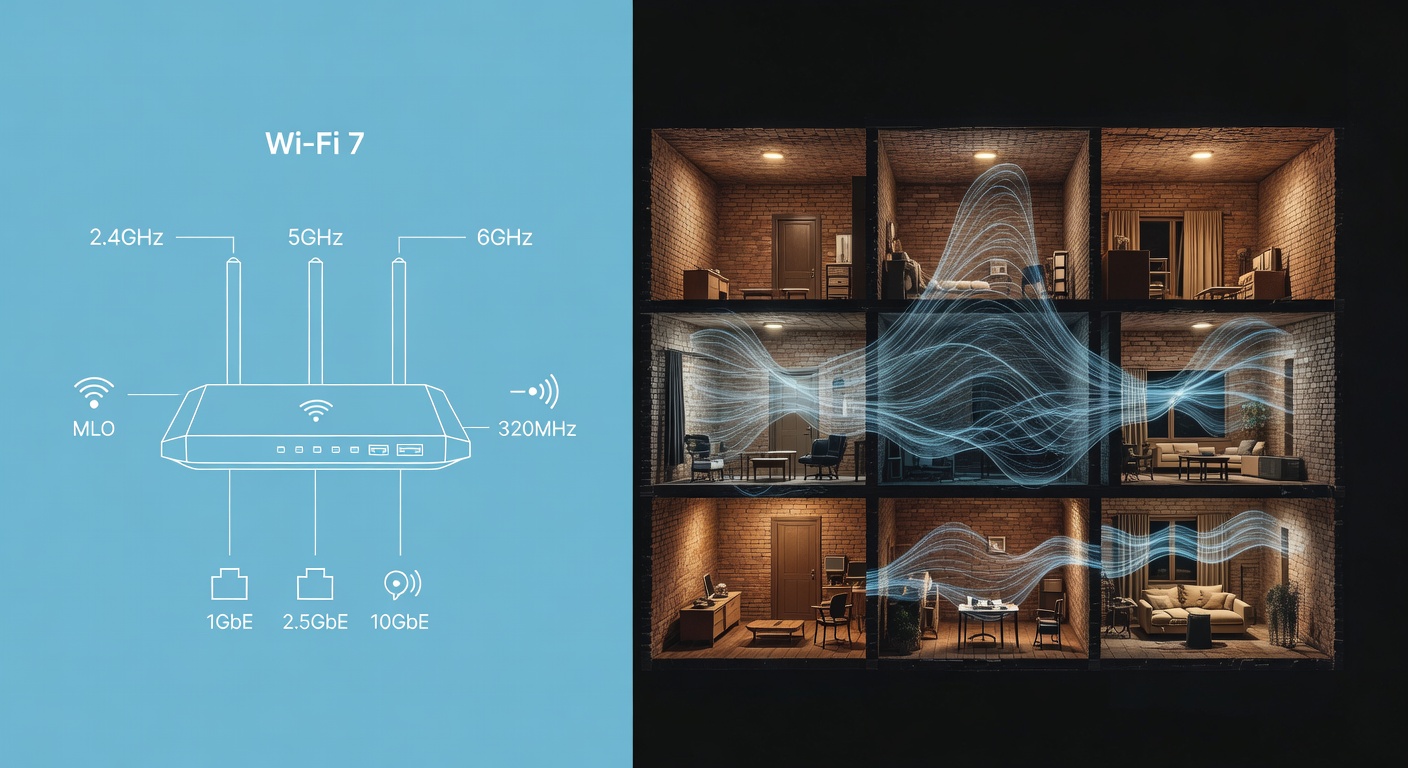
WiFi 7 Router Buying Guide (2026): What Actually Matters, What’s Marketing, and What to Buy
If you live in a small apartment (hello from the US Northeast, where my building’s wiring is old and my airwaves are crowded), Wi‑Fi isn’t a spec-sheet contest. It’s a daily-driver reliability problem. This WiFi 7 router buying guide is the practical version: what to pay for, what to ignore, and the compatibility traps that make you hate your new router by day 2. For model picks, I’m leaning on BroadbandNow’s 2026 tested roundup plus a couple of very unglamorous compatibility docs—because that’s where the real pain lives. (BroadbandNow, ASUS compatibility FAQ)
Key Takeaways
- Match the router to your wired reality: ISP speed and Ethernet ports (2.5GbE/10GbE) often matter more than the biggest Wi‑Fi number on the box. (BroadbandNow)
- Tri-band + 6GHz can be great in congested buildings, but range is situational—walls and floors don’t care about marketing. (BroadbandNow)
- MLO is real, but treat it as a bonus: some testing found toggling MLO didn’t measurably change throughput/latency on certain routers. Firmware and client support matter. (RTINGS MLO research)
- IoT/legacy compatibility can be the dealbreaker: plan an IoT/guest SSID and be ready to temporarily disable advanced features when a camera or plug refuses to join. (ASUS, TP‑Link)
- Mesh vs single router is about layout/materials, not vibes—and mesh setup can be fussy in real homes. (NETGEAR, BroadbandNow)
Do You Even Need WiFi 7? A 60‑Second Reality Check (WiFi 6/6E vs 7)
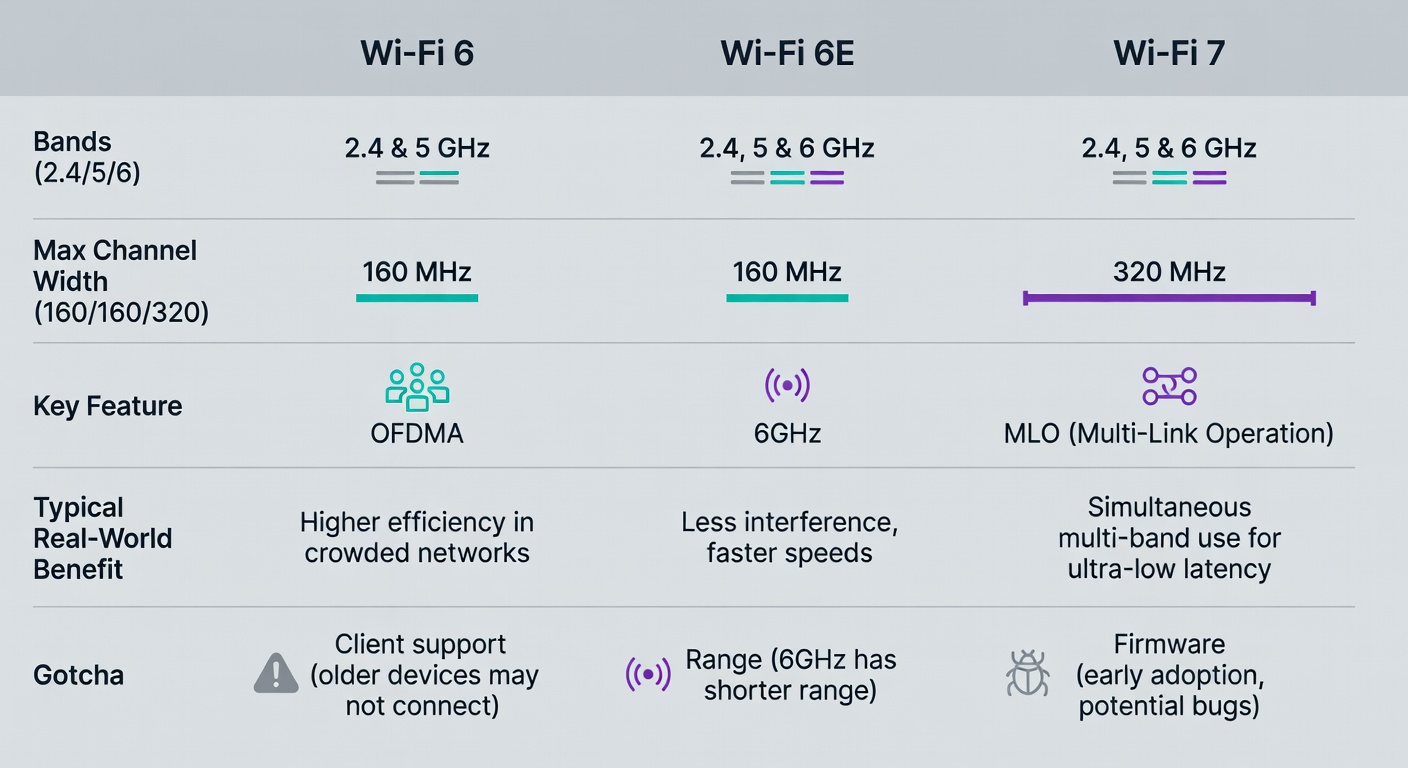
On paper, Wi‑Fi 7 adds MLO, 320MHz channels, and 4K‑QAM. ASUS’s explainer is blunt: Wi‑Fi 7 (802.11be) builds on Wi‑Fi 6/6E, expands bandwidth up to 320MHz, and introduces MLO. (ASUS)
You benefit most from Wi‑Fi 7 if you have:
- Multi‑gig internet (or you’re upgrading soon)
- Fast local transfers (NAS, big projects, lots of backups)
- Dense-device homes
- Latency-sensitive use where consistency matters more than peak speed
The catch: client support. ASUS notes Wi‑Fi 7 is currently “only a few new smartphones.” If your laptop/phone is Wi‑Fi 6, a Wi‑Fi 7 router won’t magically turn it into Wi‑Fi 7. (ASUS)
My buying rule: Wi‑Fi 7 is worth it when you’re replacing an aging router anyway and you want a 5–7 year box. If your Wi‑Fi 6E setup is stable and fast enough, skip without regret.
Specs That Matter (and the Ones That Mostly Don’t)
After too much testing and troubleshooting: ports and bands beat “BE19000” bragging rights.
Bands and radios: 2.4/5/6GHz, and why tri-band is usually the sane buy
Most Wi‑Fi 7 routers are some mix of:
- 2.4GHz: long range, slow, crowded (IoT loves it)
- 5GHz: the workhorse
- 6GHz: cleaner and fast—if you’re close enough and your device supports it (BroadbandNow)
A dual-band Wi‑Fi 7 router can be fine, but you’re giving up flexibility. The eero 7 is dual-band (2.4/5GHz) per RTINGS—so yes, it’s Wi‑Fi 7, but it’s also missing the 6GHz band that’s doing a lot of the heavy lifting in many Wi‑Fi 7 setups. (RTINGS)
In a crowded apartment building, 6GHz can be a relief valve. In a multi-floor place, it can be a short-range sprint you rarely use.
Channel width: 320MHz is real, but only where it’s usable
Wi‑Fi 7’s 320MHz channels can genuinely matter when conditions are right. The annoying part: some routers won’t reliably use wider channels without a bit of luck and/or firmware maturity. RTINGS notes the eero 7 initially broadcast at 80MHz and only later used 160MHz during testing. (RTINGS)
Just don’t confuse “supports” with “you will see this everywhere.” You won’t.
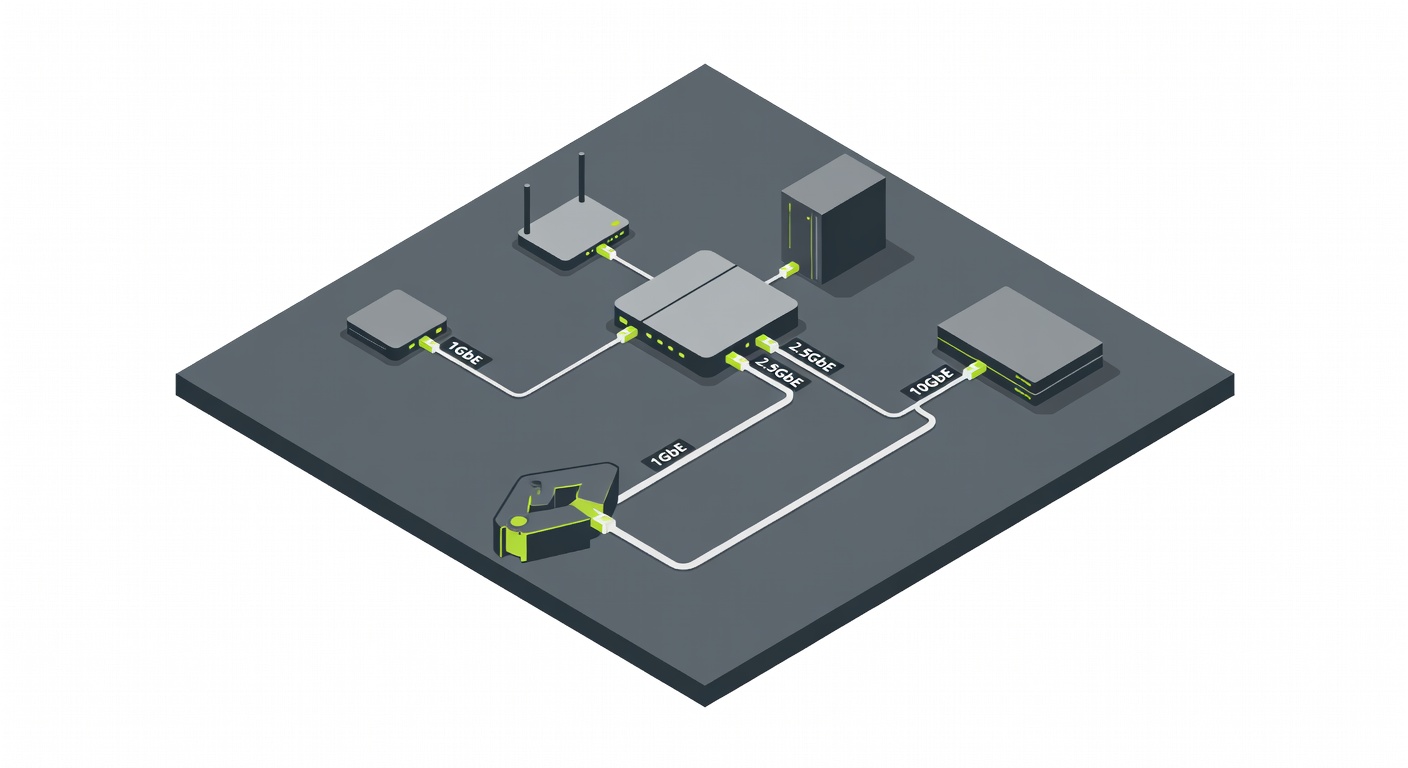
Ethernet: your router can’t out-Wi‑Fi a 1GbE bottleneck
The boring deciding detail: wired ports.
If you have (or want) multi‑gig internet, look for:
- 2.5GbE WAN/LAN at minimum
- 10GbE if you move big files locally or want real longevity
For context, eero says the eero 7 is ideal for internet plans up to 2.5Gbps and includes two auto-sensing 2.5GbE ports. (eero)
The speed rating on the box is… not what one device gets
Those “up to” numbers are typically aggregated across bands. Useful for class comparison, not a promise your phone will hit that.
MLO: the feature you’re paying for… that might not change your life (yet)
MLO sounds like magic: multiple links, better latency, more stability. But RTINGS’ Wi‑Fi 7 MLO research found that on several routers, enabling/disabling MLO produced no measurable change in throughput, latency, or stability versus using 6GHz only—because not every implementation exposes the “advanced” behavior marketing implies. (RTINGS MLO research)
Advice: don’t buy a router only for MLO unless your key client devices support it well and you’re comfortable living through firmware updates.
6GHz: fast, clean, and annoyingly short-range
Apartments have interference and barriers; placement matters. NETGEAR recommends central placement and avoiding shared walls where possible. (NETGEAR)
6GHz is the same story, just more dramatic. If your router has to live in a far corner (because that’s where the modem is), don’t overpay for 6GHz performance you can’t reach.
Real-World Speed Test Matrix: Distance + Walls Beat Box Speeds
Here’s the part most “Wi‑Fi 7 is here!” coverage skips: performance is a distance + obstacles problem, and your client device matters as much as the router.
To keep this grounded, I’m using RTINGS’ measured throughput for two real products as a sanity check: a dual-band Wi‑Fi 7 mesh (eero 7) and a tri-band Wi‑Fi 7 router with 6GHz (TP-Link Archer BE700). RTINGS’ numbers show exactly why “up to” ratings are a trap: short range can be great, long range can fall off hard, and 6GHz changes the ceiling when you can actually use it. (RTINGS eero 7, RTINGS BE700)
| Scenario | 5GHz typical throughput | 6GHz typical throughput | What to do if this is your reality |
|---|---|---|---|
| Same room, line-of-sight | ~600–900Mbps (eero 7 avg 629Mbps; peak 930Mbps) (source) | ~2.1Gbps avg; peak ~2.7Gbps (BE700 avg 2,147Mbps; peak 2,730Mbps) (source) | Prioritise placement. If you’re chasing big local transfers, this is where 6GHz earns its keep. |
| One wall away (typical drywall) | Often still “good enough” for 4K streaming and downloads (expect a noticeable drop vs same room) | Can stay fast, but is more sensitive to placement and client support | Try moving the router higher/clearer. If 6GHz gets flaky, let devices fall back to 5GHz. |
| Two walls away (plaster/brick starts to hurt) | ~300–500Mbps can be realistic on a strong setup (BE700 long-range avg 485Mbps) (source) | ~1.3Gbps avg in RTINGS’ long-range test (BE700 avg 1,361Mbps) (source) | If this is your office/TV room: consider a second node, or run Ethernet for wired backhaul. |
| One floor away (or far corner of a long apartment) | ~150–300Mbps isn’t shocking (eero 7 long-range avg 289Mbps; low 158Mbps) (source) | Varies wildly; 6GHz may not be the band you actually live on | Mesh can help, but wired backhaul helps more. If you can’t wire, place the node where it still gets a strong signal. |
Note: these are “typical” ranges anchored to RTINGS’ measured short/long-range results for specific routers; your client devices, channel conditions, and building materials will move the numbers. (RTINGS, RTINGS)
Router vs Mesh (Especially in Apartments): When Each One Wins
Your floor plan is the spec.
NETGEAR’s framing is practical: a single modern router is often enough for many apartments, while mesh helps when dense materials weaken signals or when coverage demands it. (NETGEAR)
Mesh has a hidden cost: setup friction. BroadbandNow’s testers liked eero 7 once running, but reported hard resets, re-adding nodes, and relocating them to get stable connections. (BroadbandNow)
Rule of thumb:
- Try a single strong router placed as centrally as possible.
- If you go mesh, prioritize wired backhaul.
- Add nodes only as needed.
Apartment Floor Plans: Router vs Mesh Coverage (What Changes in Real Layouts)
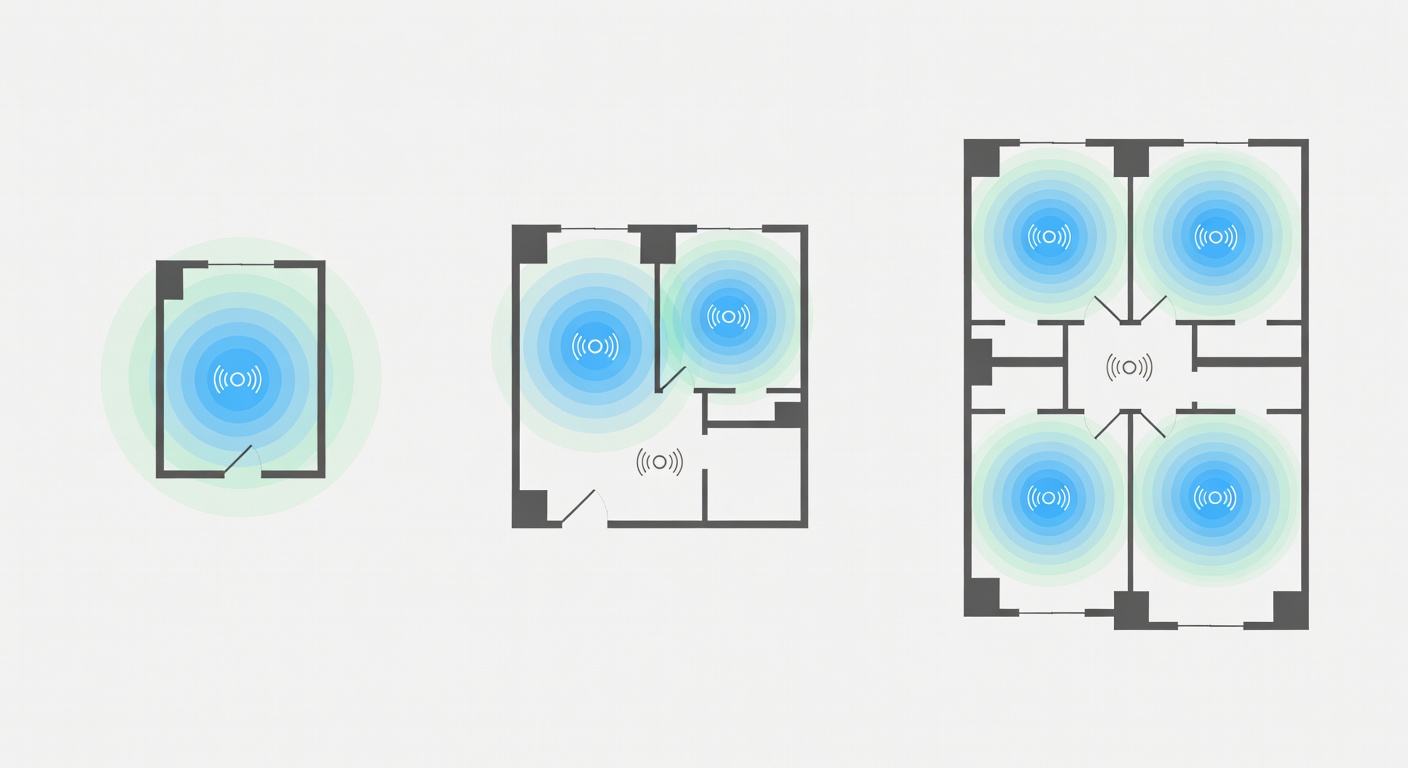
Think of this as “where will I swear at my Wi‑Fi?” planning. Your modem location and your walls decide most of the outcome. Not the Wi‑Fi 7 logo.
1) Studio / 1BR rectangle (simple box)
Single router placement: as close to the centre as your modem allows (even “centre-ish” helps). Higher shelf beats floor-level. (source)
When a 2-node mesh is justified: only if the modem is stuck in a far corner and your bedroom/office is the opposite corner.
Common failure mode: 6GHz looks amazing in the living room, then quietly disappears in the bedroom. You end up living on 5GHz anyway.
2) Long “railroad” apartment (rooms in a line)
Single router placement: aim for the middle room/hallway if you can run coax/ethernet to get there. If you can’t, accept you’ll have a weak end.
When a 2-node mesh is justified: pretty often. Put node #2 about two-thirds of the way down the line—where it still gets a strong signal from node #1.
Common failure mode: dead zone at the far end, plus “why is my phone clinging to the wrong node?” roaming weirdness if nodes are too close or too far apart.
3) Multi-room with thick interior walls (plaster/brick vibes)
Single router placement: central and not blocked by big metal stuff (fridge, radiator, breaker panel). Yes, I’ve seen all three ruin a “perfect” placement.
When a 2-node mesh is justified: when one specific room is consistently bad (office/TV room). If you can do wired backhaul, do it—mesh over Wi‑Fi through thick walls can be fussy. (source)
Common failure mode: the mesh node connects, but the backhaul is weak—so everything “works,” just slower and less stable than you expected.
Compatibility & Stability: The Stuff That Breaks Smart Homes
Wi‑Fi 7 routers are supposed to be backwards compatible. In reality, IoT devices are tiny computers with ancient Wi‑Fi stacks.
ASUS warns some legacy devices might not be compatible with Wi‑Fi 7 or newer encryption, and suggests: disable Wi‑Fi 7 mode or use an IoT network (2.4GHz+5GHz, WPA2‑Personal AES). (ASUS)
TP‑Link notes community feedback that Wi‑Fi 7 routers can cause smart-device issues, and that TP‑Link smart devices don’t yet support WiFi 7. Their troubleshooting is basically “turn off the fancy stuff” (6GHz, MLO, roaming, mesh) and use a dedicated IoT/guest network. (TP‑Link)
Pre-Buy Compatibility Checklist (Copy/Paste)
Screenshot this. Save it. Use it before you impulse-buy a router because the box said “BE-whatever.”
☐ My modem/ONT location is fixed, and I’ve planned router placement around that constraint.
☐ My internet plan speed is ______ Mbps/Gbps, and my router WAN port won’t bottleneck it (2.5GbE/10GbE as needed). (source)
☐ I have ______ wired devices, and the router has enough LAN ports (or I’m adding a switch).
☐ I know which devices are actually Wi‑Fi 7 (and which are Wi‑Fi 6/6E). (source)
☐ I’m buying tri-band/6GHz because I can use it (same room/one wall), not because it sounds cool.
☐ I’m treating MLO as a bonus, not the reason to buy (implementation varies). (source)
☐ I have legacy IoT that needs 2.4GHz + WPA2, and I’m willing to run a separate IoT/guest SSID. (source)
☐ I’m okay temporarily disabling “smart” features (6GHz/MLO/band steering/fast roaming) during pairing. (source)
☐ If I go mesh, I’ve decided whether I can do wired backhaul (preferred) or wireless backhaul (more variable).
☐ I’m comfortable with app/account requirements if the system needs them (this is a real cost). (source)
☐ I’ll update firmware on day 1 and re-check after major updates (routers change over time). (source)
What to Click: IoT Network Settings That Fix 80% of Pairing Problems
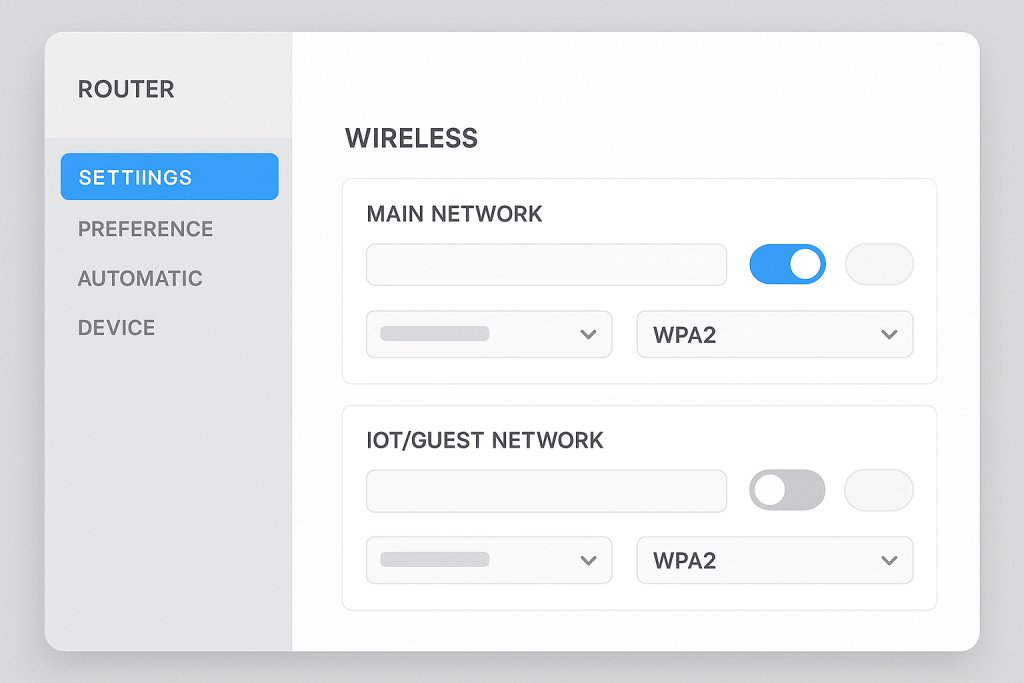
This is the part nobody wants to do, but it saves hours: set up a “boring” IoT network that your picky devices can actually join. ASUS explicitly recommends an IoT network with WPA2‑Personal (AES) for legacy devices. (ASUS)
Vendor-neutral walkthrough (most router apps/web UIs follow this pattern):
- Open your router app or web admin page → go to Wireless / Wi‑Fi.
- Find Guest Network or Additional SSID and create one named something obvious like Home‑IoT.
- Set Band to 2.4GHz only. (If you can’t force 2.4GHz-only, disable band steering for this SSID.)
- Set Security to WPA2‑Personal (AES) for the IoT SSID. Keep WPA3 on your main SSID if your devices behave. (source)
- Temporarily disable these during pairing (re-enable after):
- 6GHz (if your UI lets you toggle it per SSID)
- MLO (TP‑Link guidance)
- Band steering / “Smart Connect”
- Fast roaming / 802.11r (if present)
- Pair the device while your phone is connected to Home‑IoT. If it still fails, move the device closer to the main router for initial setup, then relocate it.
Quick ecosystem callouts (because people ask):
- ASUS: their own FAQ calls out using an IoT network and WPA2‑Personal (AES) for legacy devices. (source)
- TP‑Link: their community guidance for smart-device issues is basically “turn off the advanced Wi‑Fi 7 stuff and use a dedicated IoT/guest network.” (source)
- eero: RTINGS notes configuration is app-based and that some features are paywalled behind eero+. That’s not automatically bad, but it’s a dependency you should be aware of. (source)
Real-world triage: “my camera/plug won’t join”
- Create an IoT SSID (2.4GHz only, or 2.4+5 without band steering).
- Set security to WPA2‑Personal (AES) for that SSID. (Keep WPA3 on your main network.)
- Temporarily disable MLO and/or 6GHz while pairing. Re-enable after.
- If you’re using mesh, pair near the main node first, then move the device.
If you’re mixing ASUS AiMesh gear: ASUS notes enabling MLO on the primary router can mean nodes without MLO won’t broadcast 6GHz. Translation: mixed ecosystems can get weird. (ASUS)
Would you rather have “maximum Wi‑Fi 7” or a doorbell cam that stays online? Exactly.
My Shortlist: 3 WiFi 7 Picks by Budget (and Who Should Buy Each)
Three picks from BroadbandNow’s tested 2026 list. Prices below are what BroadbandNow listed. (BroadbandNow)
Best performance pick: Netgear Nighthawk RS700S
BroadbandNow: RS700S “outperformed the competition” with “rock-solid performance,” plus 320MHz support and dual 10Gbps ports. Price: $599.99. (BroadbandNow)
Buy it if you have multi‑gig internet, do big local transfers, or want a router you won’t replace soon. Skip it if your plan is 500Mbps and your devices are mostly Wi‑Fi 6.
Best “I just want it to work” mesh pick: eero 7
BroadbandNow likes the design and mesh performance, but reported setup hassles (hard resets, re-adding nodes). It’s also dual-band Wi‑Fi 7. Price: $349.99 (3‑pack). (BroadbandNow)
For a current reality check, eero’s own pricing shows $169.99 list for a 1-pack (often shown on sale), $279.99 list for a 2-pack, and $349.99 list for a 3-pack. (eero)
Buy it if convenience and coverage matter more than peak specs—and you’re okay doing a little troubleshooting up front.
Best budget Wi‑Fi 7: TP‑Link Archer BE550
BroadbandNow’s budget pick at $189.99, with the caveat that it lacks premium features like 10Gbps ports and 320MHz channels. (BroadbandNow)
If you’re heavy on smart-home devices and things get flaky, TP‑Link’s own guidance is to disable advanced features and use a dedicated IoT/guest network. (TP‑Link)
Buy it if you want a serious upgrade without spending rent money.
WiFi 6E vs WiFi 7 Price Reality (2026): How Much More Are You Paying?
Prices checked February 2026 (and yes, sales swing this stuff wildly). The point isn’t precision; it’s the shape of the decision.
In practice, the extra spend for Wi‑Fi 7 usually buys you some combination of: newer radios, 6GHz + wider channels on tri-band models, and sometimes better multi-gig Ethernet. What it doesn’t buy: instant Wi‑Fi 7 on old clients, or guaranteed 6GHz range through your building’s walls. (ASUS)
| Tier | Typical WiFi 6E Price Range | Typical WiFi 7 Price Range | What You Gain | Who Should Pay |
|---|---|---|---|---|
| Budget | ~$100–$200 (often single-router) | ~$140–$200 (eero 7 1-pack list $169.99; often shown on sale) (source) | Wi‑Fi 7 label + some Wi‑Fi 7 features, but often dual-band (no 6GHz) | People replacing old Wi‑Fi 5/6 gear who want a modern, simple box |
| Midrange | ~$200–$350 | ~$230–$400 (eero 7 2-pack list $279.99; 3-pack list $349.99) (source) | Better coverage (mesh packs), sometimes 2.5GbE ports; still depends on whether you get 6GHz | Apartments with dead zones, WFH setups that need stability more than bragging rights |
| High-end | ~$300–$600+ | ~$600+ (RS700S listed $599.99 in BroadbandNow’s roundup) (source) | More consistent multi-gig wired options; higher ceilings for 6GHz clients at close range | Multi‑gig internet, heavy local transfers, lots of simultaneous users/devices |
Prices vary by sales. Also: multi-gig ports can be the real value driver—because a router can’t out-Wi‑Fi a wired bottleneck.
Setup Checklist (So You Don’t Hate Your New Router on Day 2)
- Place it like you mean it: central if possible; avoid shared walls in apartments if you can. (NETGEAR)
- Update firmware immediately, then reboot once.
- Create two networks:
- Main SSID: WPA3 if all your devices behave.
- IoT SSID: WPA2‑Personal (AES) for picky devices, per ASUS’s guidance. (ASUS)
- Disable remote management unless you truly need it. (NETGEAR also recommends disabling it unless necessary.) (NETGEAR)
- If a device won’t connect, temporarily disable 6GHz/MLO during pairing, then re-enable. (ASUS, TP‑Link)
- Do a quick sanity test: walk test, one video call, one big download.
If you’re still on the fence, pick based on the one thing you can’t tolerate: dead zones, flaky IoT, or app/account nonsense.
Sources
- BroadbandNow: Best Wi‑Fi 7 Routers of 2026, Tested and Reviewed
- ASUS ZenTalk FAQ: WiFi 7 router compatibility
- TP‑Link Community: WiFi 7 router compatibility issues with smart devices
- RTINGS: Wi‑Fi 7 MLO research
- NETGEAR: Best router for apartments
- eero: eero 7 pricing and specs
- RTINGS: eero 7 review
- RTINGS: TP-Link Archer BE700 review



Leave a Reply