Smart Home Wi-Fi Fixes: Proven Tips for Connectivity Issues
Some later links are Amazon Associates. As an Amazon Associate, TelcoBlade earns from qualifying purchases. Live prices are on Amazon.
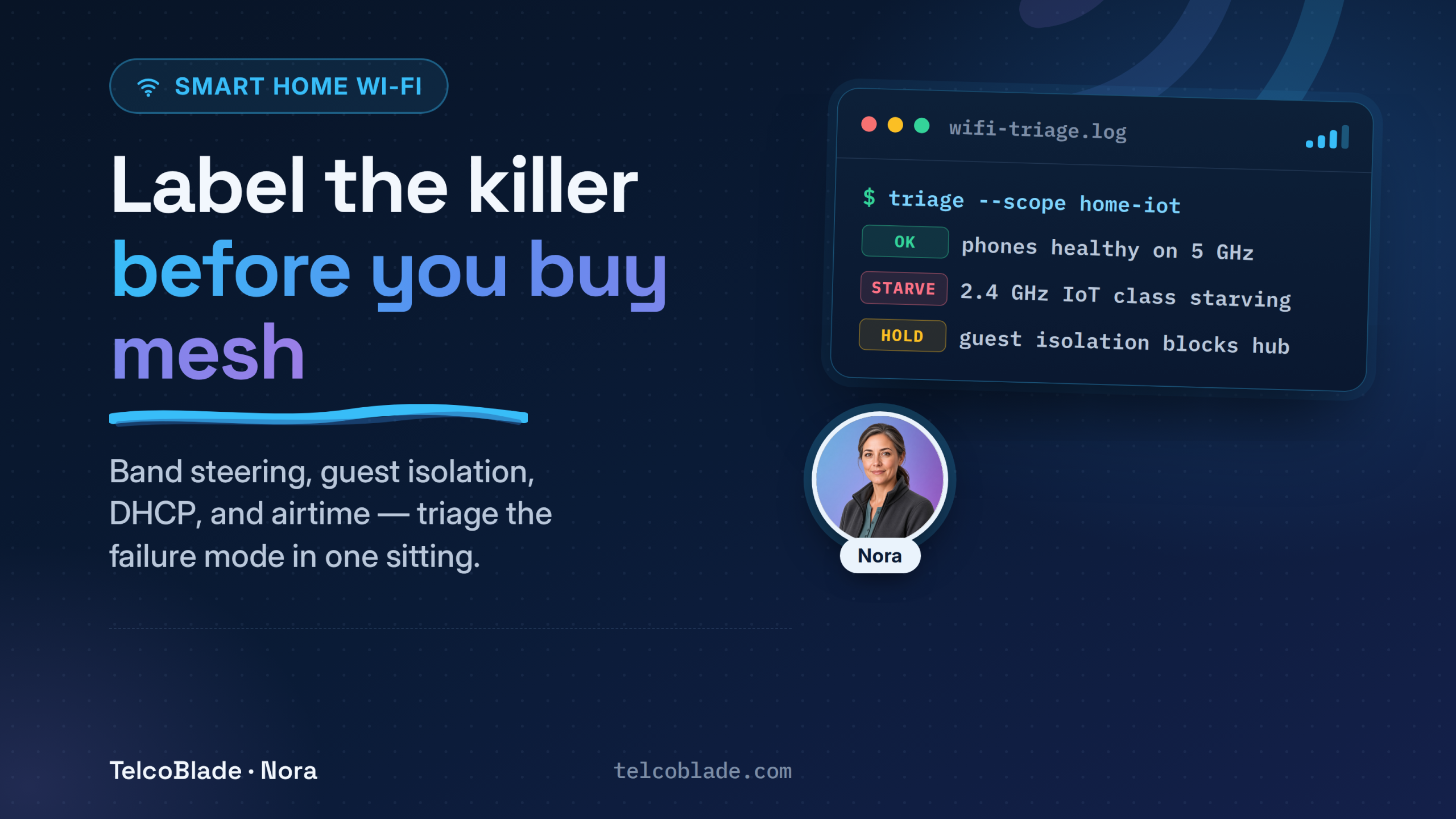
A flaky bulb or camera often gets treated like a hardware fault before anyone looks at the network. Reboot it. Swap the mesh node. Reset the app. The real problem stays put. Phones sit happy on 5 GHz while the whole 2.4 GHz IoT crowd starves, or a guest network with client isolation quietly blocks the hub those devices need.
This guide is how to fix smart home wifi by naming the failure mode first, not throwing gear at it. Band steering, combined SSIDs, DHCP exhaustion, airtime pressure, and cloud false alarms each want a different fix. Buying another mesh node before you’ve identified the mode usually spends money on the wrong layer.
The Failed Assumption: Reboot, Buy Mesh, Blame the Bulb
The failed assumption is that smart home Wi-Fi problems are random device defects. Sometimes they are. More often the network itself is mis-shaped for sleepy, 2.4 GHz-only clients that hate roaming and choke on multicast surprises.
You know the scene: cameras and plugs drop off overnight. The phone still shows full bars in the kitchen, because of course it does. So the shopping cart fills with another mesh satellite. That satellite does not fix band steering, a full DHCP pool, or guest isolation that blocks local discovery.
The job of this piece is one-sitting triage. Recover connections when the failure mode is configuration. Escalate to better gear only after the gear you already own proves it is not the problem.
Triage Map: One Device, the 2.4 GHz Class, or the Whole Network
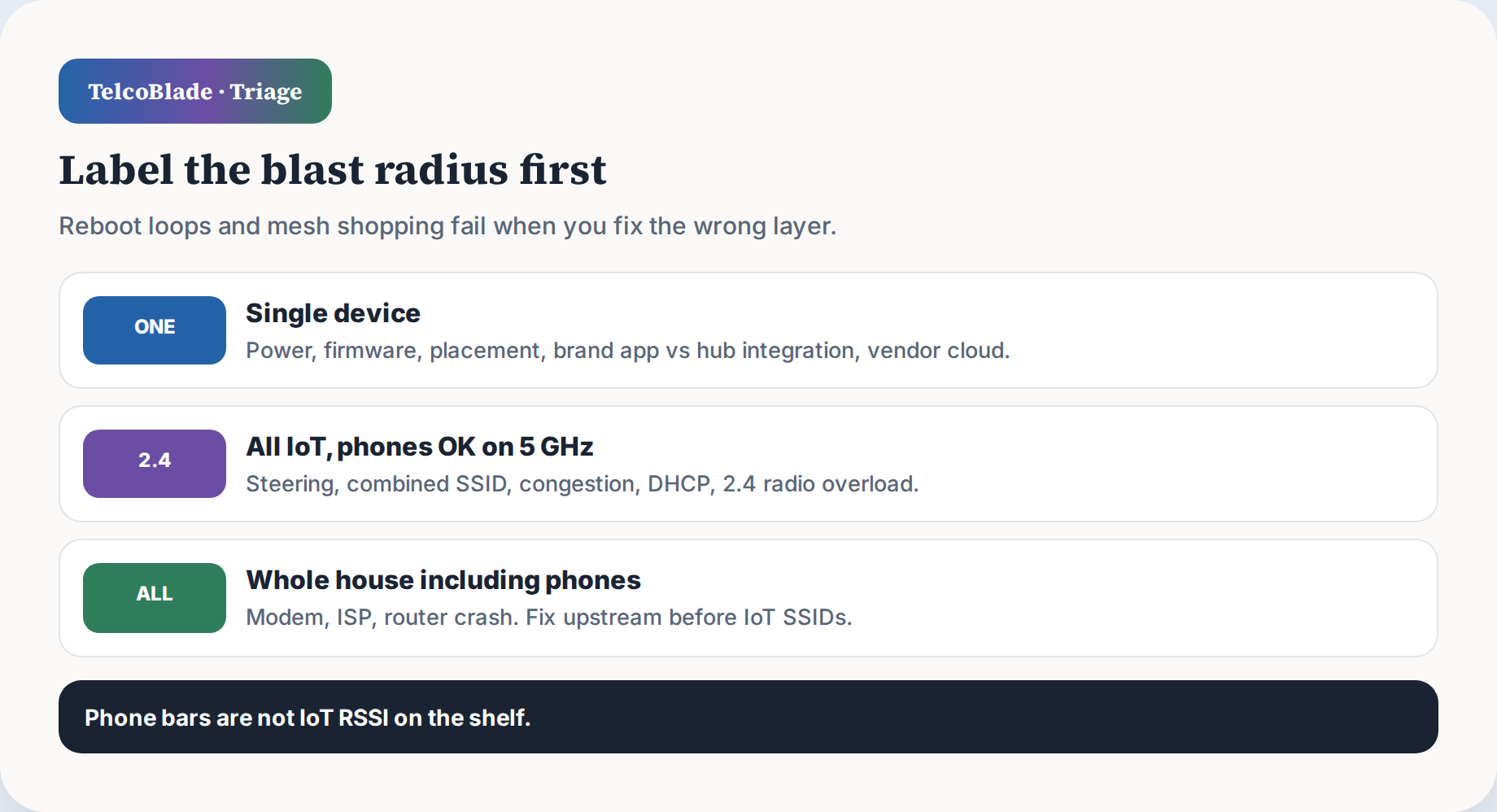
Before you factory-reset anything, sort the blast radius. On paper, not in your head.
One device. Check power at the outlet, firmware, placement behind metal or a thick wall, a brand app that says it’s fine while the hub integration isn’t (or the reverse), and vendor cloud outages dressed up as Wi-Fi death. Full bars on your phone do not prove the bulb on the top shelf has usable signal.
All 2.4 GHz IoT, phones fine on 5 GHz. This is the smart-home pattern I see most. Suspect combined Smart Connect SSIDs, band steering, 2.4 congestion, interference, airtime fairness settings, DHCP exhaustion, or a 2.4 radio that overloaded or quit while the 5 GHz radio still serves laptops.
Everything, including phones. Start upstream: modem, ISP outage, router crash, WAN failover. Do not rebuild the IoT SSID while the whole house is offline.
Write the blast radius down before you touch advanced WLAN toggles. The map keeps you from fixing the wrong layer.
Band Steering and Separate SSIDs
Plenty of plugs, bulbs, sensors, and cameras are 2.4 GHz only. Most setup apps want your phone to sit on that same band while pairing. And the second your phone stomps back to 5 GHz, the join fails, even though the router swears it has Wi-Fi.
Turn off band steering (sometimes labeled Smart Connect, band select, or some other vendor euphemism) when devices bounce between bands or never finish setup. Band steering is there to keep a phone happy. For IoT, it is basically a foot-gun with a checkbox.
Split the bands. Give 2.4 GHz and 5 GHz two different SSIDs, or carve out a dedicated IoT SSID that is 2.4 only. Put the sleepy sensors and bulbs on the IoT name. Keep laptops and phones on the fast one. That single change clears a huge pile of "won’t join" tickets.
Temporary pairing aid. If the phone absolutely refuses to leave 5 GHz, use a phone hotspot locked to 2.4 GHz with the same SSID and password as the target IoT network. Let the device learn the credentials there, then put it back on the real AP. Treat it as a pairing bridge, not a permanent plan.
SSID hygiene. Underscores and weird special characters make brittle joiners throw fits. While you are stabilizing, use boring alphanumeric names.
Security mismatch. Older devices sometimes bail if the AP still offers TKIP or mixed modes. Prefer the most modern WPA2/WPA3 settings the device’s own documentation allows.
Channels. On crowded 2.4 GHz, stick to 1, 6, or 11 unless a survey tells you otherwise. Overlapping wide channels and auto-channel thrash make the weakest IoT clients drop first.
Guest Networks and Client Isolation
Sticking every light bulb and sensor on the guest Wi-Fi feels like the safe move. It often is. Then client isolation (AP isolation) does its quiet little job: blocking device-to-device traffic on that same SSID, and your hub stops seeing the very things you put there.
A cloud-only gadget that just phones home for a firmware check? It might not care. But the second you fire up a local dashboard, cast a screen, or rely on mDNS discovery for a hub, isolation starts dropping packets and the whole automation falls over. If setup works on the main SSID and dies on the guest, isolation is your prime suspect.
The pattern that causes fewer support calls is a dedicated IoT SSID without client isolation, then firewall or VLAN rules that block IoT from your main LAN except the hub you choose. That is not the same design as “guest equals isolated.”
Renters on a building-wide Wi-Fi with forced AP isolation hit a hard ceiling. The property network simply will not let two of your devices talk, and no amount of app re-pairing changes that. If you have an allowed Ethernet jack, put your own router behind it when policy permits. If you do not, you are stuck with fragile tricks on the shared SSID, and those usually end in a support ticket to yourself at midnight.
Mesh, Airtime, Cameras, and DHCP
Mesh fixes coverage. It does not automatically fix a house full of sensors, bulbs, and cameras that still hate the network.
Sticky clients. A camera will hang on to a distant node over a weak 2.4 GHz link while the closer node sits there doing nothing. Pull up the controller client list and look. Force a reconnect, or tune the minimum RSSI and band rules if the gear exposes them. A mesh pod sitting six feet away is not proof the camera actually associated with it.
Cameras are chatty on Wi-Fi, and a pile of them on an ISP combo gateway can crowd out the bulbs and sensors. Airtime fairness and power-save features aimed at phones sometimes starve sleepy IoT gear. If the low-power stuff drops while the cameras stay up, airtime pressure is very much in play.
After you’ve added plugs and cameras, the DHCP pool can run dry. Devices fail to reconnect with vague errors. Confirm against the router’s DHCP client table, then expand the pool or shorten leases.
Two DHCP servers. A second router still routing (not bridged) on the same subnet hands out duplicate DHCP and causes random offline behavior. One DHCP authority per segment.
Microwaves, dense neighbor Wi-Fi, and crowded 2.4 GHz electronics can all look like a bad mesh. Survey the channels before you spend money on a hardware class upgrade.
When Wi-Fi airtime is the actual bottleneck, moving some devices to Zigbee, Z-Wave, or Thread is a protocol decision, not another identical Wi-Fi bulb. It’s a later fork, once the RF and SSID basics are clean.
ISP combo gateways deserve a hard look once client counts climb. They are built for a handful of phones and laptops. A dozen cameras plus sensors can push them into reboot loops that make the whole IoT setup look cursed. Upgrading the access layer is fair after triage. Ranking mesh logos is not the triage.
Firmware, Cloud, and False Alarms
Not every “offline” means the radio died.
If the brand app says the device is online but the hub or voice integration shows offline, fix the integration token or link before you go near the hardware. If every device from one vendor drops while the rest of the IoT on the same SSID stays up, check the vendor cloud status before you rebuild Wi-Fi.
Firmware updates can create daily offline loops that look exactly like RF loss. Check whether drops started after an update wave, and whether only certain models got hit. Router client lists help here: weak signal while associated points to RF; strong signal but app-offline points somewhere else.
Pre-reset checklist: power-cycle the device and AP, confirm blast radius, confirm cloud/integration, confirm DHCP lease, confirm band/SSID, then (only then) factory reset as a last resort.
Also separate “offline in the voice assistant” from “offline on the network.” They are not the same thing. A device can hold a lease and answer pings while an OAuth token for a third-party integration is dead. Resetting Wi-Fi will not repair that token.
One-Sitting Fix Pass
Run these in order. Stop when the symptom clears, not when the app decides it did.
- Blast radius. One device, all the 2.4 GHz IoT gear, or the whole house including phones? Figure that out before touching anything.
- Power cycle. Modem if it’s separate, router, then the offline devices. Recheck before you start flipping advanced settings; half the time it’s just a stale lease.
- Band steering / Smart Connect. If joins fail or devices bounce, disable it. Split 2.4 and 5 GHz SSIDs or add a 2.4-only IoT SSID. I know, it’s always band steering.
- Phone band during setup. Make sure the phone is on 2.4 for pairing; if not, set up a temporary 2.4 hotspot with the same SSID and bridge it. The setup app won’t tell you it skipped 5, it’ll just fail.
- SSID and security. Simplify the name, and confirm AES/WPA mode actually matches what the device allows. Some IoT boards still choke on WPA3 transition modes; this isn’t the place to be clever.
- Guest isolation. If hubs or local discovery fail only on the guest network, isolation is the culprit. Build a proper IoT SSID with the right exclusions instead of putting smart devices on the same network you give visitors.
- DHCP and client count. Check pool exhaustion, duplicate DHCP servers, and how many cameras are dragging down the ISP gateway. That little plastic box has limits.
- Mesh association. Check which node actually owns the flaky client, then fix the stickiness before you buy another node. Adding mesh to a client that won’t roam is like adding more doors to a room nobody can leave.
- False alarms. Separate the brand app outage, the hub, the cloud, and the firmware loop before you factory reset anything. The reset button is a last resort, not a personality test.
- Channels and interference. Use 1, 6, or 11 on 2.4 GHz. Rule out microwave-hour drops before spending money on new hardware; lunchtime interference looks exactly like a failing radio.
Smart home Wi-Fi issues reward labeling. Fix the band, the isolation rule, the DHCP pool, or the firmware story you actually have in front of you. Mesh is optional after triage - not the first superstition.